> ## Documentation Index
> Fetch the complete documentation index at: https://docs.meshconnect.com/llms.txt
> Use this file to discover all available pages before exploring further.
# Polish the experience
By the end of this guide, you'll have a polished, production-ready integration with a well-designed entry point, clean session handling, a great return-user experience, and real-time webhook notifications.
**Before you start**
* Your core integration is working end-to-end in sandbox: you can fetch a Link Token, launch the SDK, and handle callbacks
* You've set up Mesh Managed Tokens for return users (see [Supercharge return-users](/build/return-users))
## Overview
The Mesh SDK handles the full user journey of connecting accounts and initiating transfers — but there are a few things you'll want to set up on your side to make the experience seamless from start to finish.
## For all implementations
### Create the front door to Mesh Link (eg. a button)
**Content**: A common approach to a button is "Direct deposit" or "Pay with crypto" or "Connect an account". These are all fine as they set clear expectations. But wherever possible, lead with words that relay the benefit of Mesh (ie. security). This helps users understand not just that this exists, but rather why they should try it (in connected account flows, users can't misconfigure a transfer and lose assets). An example would be subtext that says "*Securely send to the correct address and network*" and/or using a shield or some other security-oriented icon.
**Images**: Lead with icons for the top exchanges and wallets (ie. Binance, Coinbase, MetaMask, Phantom, etc.). Many users don't yet recognize the Mesh brand, so we would not recommend leading with Mesh branding.
**Return users**: Create a dedicated entry point for return users. If someone deposits with Coinbase, chances are they'll deposit from that same account in the future. So consider placing a "Deposit from Coinbase" button next to the general button whenever a user has successfully connected an account. See the [Supercharge return-users](/build/return-users) guide for more details.
**Want more help?** Use our [button generator](https://mesh-button-builder.vercel.app/). This tool helps you quickly generate code for a button you can put in your app.
### Configure Mesh Link to match your design system
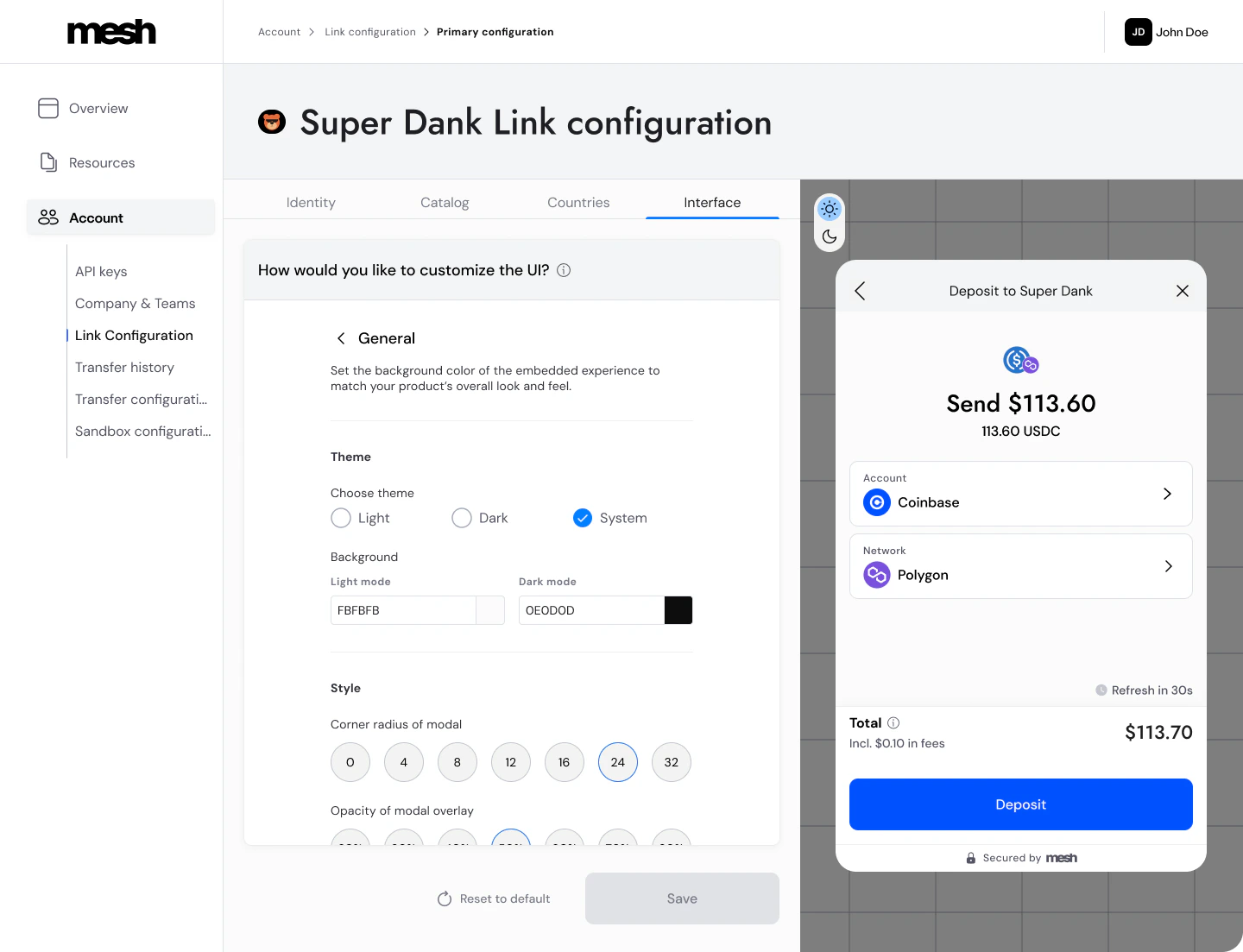
Link has a modern, polished design system by default. However, you can configure the interface to closely match your own design system. Fonts, colors, and even loading animations can be updated, making Link appear more native to your platform. This minimizes the seam between your product and Mesh, enhancing the overall experience.
In the Mesh developer dashboard, go to **Account > Link Configuration > Interface** to make these configurations.
 ### Handle a clean end of session
When a user successfully completes a transfer, they will end on a success screen and can click "Done." This will end the current Link session.
1. When the user lands back on your product surface, acknowledge a pending transaction. Most clients flash a banner for this (eg. "Deposit pending").
1. **Why?** Crypto users are used to waiting some time to see balances update or payments complete after manually initiating a transaction. But remember, they see a Success screen in Link at the end of a successful flow, so it can be nerve-wracking if they don't see that reflected in your app instantly.
2. You can trigger this banner or notification using the `onTransferFinished()` callback function, whose payload contains data about a pending transfer. See the [**Mesh Link SDK Events**](/resources/sdk-events) guide for more information on this.
### Create a delightful return-user experience
Can you imagine having to add your credit card to Apple Pay every single time you wanted to tap-to-pay? That would defeat the whole purpose. But you're willing to put in the effort to set up Apple Pay because you know it will be effortless every time after that. Mesh is similar… a user must connect their account the first time, but can enjoy 1 or 2 click transactions on subsequent visits.
See the [Supercharge return-users](/build/return-users) guide for instructions on how to capture `accessTokens` and pass them on subsequent user sessions.
### Consume Mesh webhooks for real-time notifications of transfer status
Mesh will confirm success to the user (and to you via an SDK event) when the integration confirms successful receipt of the order to Mesh. At that point, the user has done all they need to, so we let them go. However, this does not mean their transaction is complete.
Self-custody wallets (eg. MetaMask, Phantom, etc.) typically post to the blockchain almost immediately upon user signing, but centralized exchanges (eg. Binance, Coinbase, etc.) often take some time to do compliance checks, and batch transactions to save on gas fees. Most exchanges post within 30s, but in some instances it could take minutes, hours, or even days.
This is why we strongly encourage all clients to consume Mesh webhooks for proactive, real-time notifications regarding transfer status. You can consider a transaction `pending` until you receive a `succeeded` event, at which point you can release inventory or credit the user's account.
Refer to the [Transfer status webhooks](/resources/webhooks) guide for more information.
## For "embedded" implementations
If you're embedding Mesh's web SDK into a container in your product surface, these tips are for you.
### Ensure Link fits in your container
You must ensure that the container in which Link is loaded abides by certain minimum & maximum dimensions or you'll end up with scenarios where buttons are below the fold, or the user must scroll on single screens (up-down or even left-right). Maintaining the intended dimensions of the SDK ensures that the user experience is preserved.
* **Mobile screens:**
* The container should maximize the space available for the iframe
* **Stationary screens:**
* Minimum height of iframe container: 450px
* Recommended height of iframe container: 665px
* **If Link is inside a modal dialog:**
* Modals often have fixed or constrained heights by default, which will clip the Mesh UI. The recommended pattern:
* Set the **iframe** height responsively: `height: min(665px, calc(100dvh - Xpx))` where X = your modal chrome (header + tabs + padding) plus any outer gutter — typically **100–160px** total (e.g. header \~56px + tabs \~50px + backdrop padding \~32px + buffer = \~160px). This gives you 665px on large screens and automatically scales down on smaller viewports.
* Set `min-height: 450px` on the iframe as a floor.
* Let the **modal container** grow to fit the iframe naturally — no fixed height on the modal. Cap it with `max-height: calc(100dvh - [your gutter])` to prevent viewport overflow.
* Flexbox on the modal with the iframe area as a growing child gives you this behavior naturally.
* **Why responsive height matters**: Mesh has sticky UI elements — action buttons and the "Secured by Mesh" footer — that are positioned relative to the *iframe's own viewport height*, not your outer container. If the iframe is always 665px but your modal only shows 500px of it on a smaller screen, those sticky elements are permanently below the fold and the user must scroll to reach them. A responsive iframe height ensures they're always anchored to the visible bottom edge.
### Pre-load Link so it feels instant & native
Call for a Link Token and initialize an SDK session as soon as the user logs into your app. This allows you to pre-load Link in the background, which will make it render instantly when the user clicks "Deposit" or "Buy" within your app, making it feel native. Link loads fairly quickly, but this can make a difference for users with slower connections or devices.
* Refresh after an SDK session has been active for 50 mins. The Mesh SDK has a 60min session expiry. If a user doesn't engage with deposit for 59mins, the session may expire while they're in it. A 50min rule leaves 10mins of validity on the user session if they start at the end of that refresh window, which should be a very comfortable buffer.
* Refresh if any user **destination address changes or is added** (the new session is to ensure you're including all correct target address)
* The user refreshes some setting in your app like **theme, currency, or language** (pass updated `theme`, `displayFiatCurrency`, or `language` to the new SDK session)
* The browser comes back **online** after a connectivity drop (`window.addEventListener('online', preload)`)
* The user **closes a modal** that was covering the Link container (so it's ready the moment they reopen)
**Loading lifecycle:** Show your own loading indicator (spinner, skeleton) only while fetching the Link token. Once you call the `openLink()` function in the Mesh SDK, you should replace your own spinner with the Mesh SDK, which handles its own animated loading state inside the iframe — your spinner only needs to cover the brief window before the iframe paints.
1. Use `connection.closeLink()` to end the active Link session. **Keep the iframe in the DOM** — do not remove it.
2. Request a new Link Token.
3. Re-initialize the SDK with the same `customIframeId` — Link will repaint inside the existing iframe.
### Handle a clean end of session
There are expanded instructions for handling session ends when Link is embedded. These two callbacks serve different purposes — don't conflate them.
**`onTransferFinished(payload)`** fires when a transfer is initiated. The user is *still on the success screen inside Link* at this point. Use this to show a "Deposit pending" banner or notification in your app UI. **Do not call `closeLink()` here** — the session is still active and the user hasn't left yet.
**`onExit()`** fires when the user clicks "Done" and is ready to leave Link, and also after a `closeLinkRequested()` call — it is the single unified signal that a session has ended, regardless of which path triggered it. Write your `onExit()` handler to cover both cases. This is the correct place to call `connection.closeLink()`. After closing, either:
1. **Keep the container open**: Re-initialize a new Link session using the same `customIframeId` to bring the user back to the start of the deposit flow. Or…
2. **Close the container**: Call `closeLink()`, then preload a new session in the background (using the same `customIframeId`) so it's instant next time.
**Do not remove the iframe from the DOM** between sessions. Keep the element in place and simply re-initialize the SDK — see "Keep the iframe in the DOM" below.
### Close Link gracefully when the user dismisses your container
If your container has its own close affordance (an X button, a back gesture), use `closeLinkRequested()` instead of `closeLink()` when the user activates it while actively viewing a Mesh session. This gives Mesh the opportunity to show its own confirmation screen ("Are you sure you want to exit? Your progress will be lost.") if the user is mid-flow, rather than abruptly cutting the session.
1. User clicks your X / close button → call `connection.closeLinkRequested()`
2. Mesh handles its own confirmation UX inside the iframe if the user is mid-flow
3. `onExit()` fires once the session winds down
4. In `onExit()`: close your container
**Key distinction — `closeLinkRequested()` vs `closeLink()`:**
* **`closeLinkRequested()`**: Use when the *user* is dismissing your container (X button, back gesture) while a session is live. Lets Mesh show a confirmation if mid-flow, then fires `onExit()` when appropriate.
* **`closeLink()`**: Use for programmatic closes (eg. 50-min session refresh, starting a new Link flow, or session restart). This force-closes immediately with no confirmation and no `onExit()` callback.
### Keep the iframe in the DOM
When embedding Link, leave the iframe element in the DOM for the entire lifetime of the page — even between sessions. Do not add and remove it each time a session starts or ends.
Removing and re-inserting the iframe forces the browser to re-parse, re-layout, and re-paint from scratch. It can also cause subtle timing issues if the element disappears while the SDK is still shutting down. Instead:
* Create the iframe (or its container) **once** on page load and leave it in place permanently.
* To "hide" Link between sessions, use CSS (`display: none` or `visibility: hidden`) — the DOM element stays intact.
* When starting a new session, make the container visible again and re-initialize the SDK with the same `customIframeId`.
* Mesh renders its own loading animation inside the iframe — you don't need to rebuild the element to get a clean start.
### Handle user navigation within your app surface
This is only applicable to clients that are using Mesh for multiple user flows. For example, some use Mesh to do all of the following 3 things, each of which result in Link sessions in different places.
1. Power all or part of their crypto **Deposit** flow
2. Add Mesh's onramp integrations to the lineup of onramps in their **Buy** flow
3. Add "connect an account" to their **Withdrawal** flow for automated address retrieval
* Pre-load Link in only one of those places (whichever is most common, likely deposit).
* Persist / maintain that Link session when the user navigates away from that tab.
* **Why?** If the user is on "Deposit" and sees a Link SDK session, then clicks to "Buy" or "Withdraw", you won't have to load up a new session if they come back.
* Be sure to follow the normal 50min refresh guidance.
* If the user **commits** to starting a new Link session in another area — for example, by selecting a provider in the "Buy" tab — kill the original/active SDK session before initializing the new one.
* **Why?** A user can technically have two active Link sessions at a time, but it can cause undesirable edge cases with wallet connections and exchange OAuth. Kill the persisted session only at the moment the user *actively initiates* a new flow — not merely because they navigated to a different tab.
* **Important**: Tab navigation alone is *not* sufficient reason to kill the session. Only call `closeLink()` when the user takes a deliberate action to start a new Link flow (eg. selects a provider, clicks a connect button). This preserves the preloaded session on the other tab for when they come back.
* Instructions:
1. Use `connection.closeLink()` to end the active Link session (keep the iframe in the DOM).
2. Request a new Link Token for the new session.
3. Initialize the new Link SDK session.
**Note**: `closeLinkRequested()` is for when the user dismisses your container UI — not for programmatic session transitions. When *you* are initiating a new Link flow, always use `closeLink()` directly.
##
### Handle a clean end of session
When a user successfully completes a transfer, they will end on a success screen and can click "Done." This will end the current Link session.
1. When the user lands back on your product surface, acknowledge a pending transaction. Most clients flash a banner for this (eg. "Deposit pending").
1. **Why?** Crypto users are used to waiting some time to see balances update or payments complete after manually initiating a transaction. But remember, they see a Success screen in Link at the end of a successful flow, so it can be nerve-wracking if they don't see that reflected in your app instantly.
2. You can trigger this banner or notification using the `onTransferFinished()` callback function, whose payload contains data about a pending transfer. See the [**Mesh Link SDK Events**](/resources/sdk-events) guide for more information on this.
### Create a delightful return-user experience
Can you imagine having to add your credit card to Apple Pay every single time you wanted to tap-to-pay? That would defeat the whole purpose. But you're willing to put in the effort to set up Apple Pay because you know it will be effortless every time after that. Mesh is similar… a user must connect their account the first time, but can enjoy 1 or 2 click transactions on subsequent visits.
See the [Supercharge return-users](/build/return-users) guide for instructions on how to capture `accessTokens` and pass them on subsequent user sessions.
### Consume Mesh webhooks for real-time notifications of transfer status
Mesh will confirm success to the user (and to you via an SDK event) when the integration confirms successful receipt of the order to Mesh. At that point, the user has done all they need to, so we let them go. However, this does not mean their transaction is complete.
Self-custody wallets (eg. MetaMask, Phantom, etc.) typically post to the blockchain almost immediately upon user signing, but centralized exchanges (eg. Binance, Coinbase, etc.) often take some time to do compliance checks, and batch transactions to save on gas fees. Most exchanges post within 30s, but in some instances it could take minutes, hours, or even days.
This is why we strongly encourage all clients to consume Mesh webhooks for proactive, real-time notifications regarding transfer status. You can consider a transaction `pending` until you receive a `succeeded` event, at which point you can release inventory or credit the user's account.
Refer to the [Transfer status webhooks](/resources/webhooks) guide for more information.
## For "embedded" implementations
If you're embedding Mesh's web SDK into a container in your product surface, these tips are for you.
### Ensure Link fits in your container
You must ensure that the container in which Link is loaded abides by certain minimum & maximum dimensions or you'll end up with scenarios where buttons are below the fold, or the user must scroll on single screens (up-down or even left-right). Maintaining the intended dimensions of the SDK ensures that the user experience is preserved.
* **Mobile screens:**
* The container should maximize the space available for the iframe
* **Stationary screens:**
* Minimum height of iframe container: 450px
* Recommended height of iframe container: 665px
* **If Link is inside a modal dialog:**
* Modals often have fixed or constrained heights by default, which will clip the Mesh UI. The recommended pattern:
* Set the **iframe** height responsively: `height: min(665px, calc(100dvh - Xpx))` where X = your modal chrome (header + tabs + padding) plus any outer gutter — typically **100–160px** total (e.g. header \~56px + tabs \~50px + backdrop padding \~32px + buffer = \~160px). This gives you 665px on large screens and automatically scales down on smaller viewports.
* Set `min-height: 450px` on the iframe as a floor.
* Let the **modal container** grow to fit the iframe naturally — no fixed height on the modal. Cap it with `max-height: calc(100dvh - [your gutter])` to prevent viewport overflow.
* Flexbox on the modal with the iframe area as a growing child gives you this behavior naturally.
* **Why responsive height matters**: Mesh has sticky UI elements — action buttons and the "Secured by Mesh" footer — that are positioned relative to the *iframe's own viewport height*, not your outer container. If the iframe is always 665px but your modal only shows 500px of it on a smaller screen, those sticky elements are permanently below the fold and the user must scroll to reach them. A responsive iframe height ensures they're always anchored to the visible bottom edge.
### Pre-load Link so it feels instant & native
Call for a Link Token and initialize an SDK session as soon as the user logs into your app. This allows you to pre-load Link in the background, which will make it render instantly when the user clicks "Deposit" or "Buy" within your app, making it feel native. Link loads fairly quickly, but this can make a difference for users with slower connections or devices.
* Refresh after an SDK session has been active for 50 mins. The Mesh SDK has a 60min session expiry. If a user doesn't engage with deposit for 59mins, the session may expire while they're in it. A 50min rule leaves 10mins of validity on the user session if they start at the end of that refresh window, which should be a very comfortable buffer.
* Refresh if any user **destination address changes or is added** (the new session is to ensure you're including all correct target address)
* The user refreshes some setting in your app like **theme, currency, or language** (pass updated `theme`, `displayFiatCurrency`, or `language` to the new SDK session)
* The browser comes back **online** after a connectivity drop (`window.addEventListener('online', preload)`)
* The user **closes a modal** that was covering the Link container (so it's ready the moment they reopen)
**Loading lifecycle:** Show your own loading indicator (spinner, skeleton) only while fetching the Link token. Once you call the `openLink()` function in the Mesh SDK, you should replace your own spinner with the Mesh SDK, which handles its own animated loading state inside the iframe — your spinner only needs to cover the brief window before the iframe paints.
1. Use `connection.closeLink()` to end the active Link session. **Keep the iframe in the DOM** — do not remove it.
2. Request a new Link Token.
3. Re-initialize the SDK with the same `customIframeId` — Link will repaint inside the existing iframe.
### Handle a clean end of session
There are expanded instructions for handling session ends when Link is embedded. These two callbacks serve different purposes — don't conflate them.
**`onTransferFinished(payload)`** fires when a transfer is initiated. The user is *still on the success screen inside Link* at this point. Use this to show a "Deposit pending" banner or notification in your app UI. **Do not call `closeLink()` here** — the session is still active and the user hasn't left yet.
**`onExit()`** fires when the user clicks "Done" and is ready to leave Link, and also after a `closeLinkRequested()` call — it is the single unified signal that a session has ended, regardless of which path triggered it. Write your `onExit()` handler to cover both cases. This is the correct place to call `connection.closeLink()`. After closing, either:
1. **Keep the container open**: Re-initialize a new Link session using the same `customIframeId` to bring the user back to the start of the deposit flow. Or…
2. **Close the container**: Call `closeLink()`, then preload a new session in the background (using the same `customIframeId`) so it's instant next time.
**Do not remove the iframe from the DOM** between sessions. Keep the element in place and simply re-initialize the SDK — see "Keep the iframe in the DOM" below.
### Close Link gracefully when the user dismisses your container
If your container has its own close affordance (an X button, a back gesture), use `closeLinkRequested()` instead of `closeLink()` when the user activates it while actively viewing a Mesh session. This gives Mesh the opportunity to show its own confirmation screen ("Are you sure you want to exit? Your progress will be lost.") if the user is mid-flow, rather than abruptly cutting the session.
1. User clicks your X / close button → call `connection.closeLinkRequested()`
2. Mesh handles its own confirmation UX inside the iframe if the user is mid-flow
3. `onExit()` fires once the session winds down
4. In `onExit()`: close your container
**Key distinction — `closeLinkRequested()` vs `closeLink()`:**
* **`closeLinkRequested()`**: Use when the *user* is dismissing your container (X button, back gesture) while a session is live. Lets Mesh show a confirmation if mid-flow, then fires `onExit()` when appropriate.
* **`closeLink()`**: Use for programmatic closes (eg. 50-min session refresh, starting a new Link flow, or session restart). This force-closes immediately with no confirmation and no `onExit()` callback.
### Keep the iframe in the DOM
When embedding Link, leave the iframe element in the DOM for the entire lifetime of the page — even between sessions. Do not add and remove it each time a session starts or ends.
Removing and re-inserting the iframe forces the browser to re-parse, re-layout, and re-paint from scratch. It can also cause subtle timing issues if the element disappears while the SDK is still shutting down. Instead:
* Create the iframe (or its container) **once** on page load and leave it in place permanently.
* To "hide" Link between sessions, use CSS (`display: none` or `visibility: hidden`) — the DOM element stays intact.
* When starting a new session, make the container visible again and re-initialize the SDK with the same `customIframeId`.
* Mesh renders its own loading animation inside the iframe — you don't need to rebuild the element to get a clean start.
### Handle user navigation within your app surface
This is only applicable to clients that are using Mesh for multiple user flows. For example, some use Mesh to do all of the following 3 things, each of which result in Link sessions in different places.
1. Power all or part of their crypto **Deposit** flow
2. Add Mesh's onramp integrations to the lineup of onramps in their **Buy** flow
3. Add "connect an account" to their **Withdrawal** flow for automated address retrieval
* Pre-load Link in only one of those places (whichever is most common, likely deposit).
* Persist / maintain that Link session when the user navigates away from that tab.
* **Why?** If the user is on "Deposit" and sees a Link SDK session, then clicks to "Buy" or "Withdraw", you won't have to load up a new session if they come back.
* Be sure to follow the normal 50min refresh guidance.
* If the user **commits** to starting a new Link session in another area — for example, by selecting a provider in the "Buy" tab — kill the original/active SDK session before initializing the new one.
* **Why?** A user can technically have two active Link sessions at a time, but it can cause undesirable edge cases with wallet connections and exchange OAuth. Kill the persisted session only at the moment the user *actively initiates* a new flow — not merely because they navigated to a different tab.
* **Important**: Tab navigation alone is *not* sufficient reason to kill the session. Only call `closeLink()` when the user takes a deliberate action to start a new Link flow (eg. selects a provider, clicks a connect button). This preserves the preloaded session on the other tab for when they come back.
* Instructions:
1. Use `connection.closeLink()` to end the active Link session (keep the iframe in the DOM).
2. Request a new Link Token for the new session.
3. Initialize the new Link SDK session.
**Note**: `closeLinkRequested()` is for when the user dismisses your container UI — not for programmatic session transitions. When *you* are initiating a new Link flow, always use `closeLink()` directly.
##  For iOS implementations
### Update your iOS app's plist for smooth wallet connectivity
The Mesh SDK enables seamless connectivity with self-custody wallets by leveraging **deep linking** to redirect users to their wallet applications for actions such as signing messages or initiating transactions. To ensure proper functionality, your iOS application must include the list of native wallet links in its `Info.plist` configuration.
**Native links vs Universal Links, and why you should add wallet native link to your plist**:
* Mesh uses Universal Links for many integrations. Unlike custom URL schemes, Universal Links don't require adding entries to Info.plist. However, Universal Links depend on proper server configuration (the apple-app-site-association file) and domain verification by Apple. When Universal Links fail—due to configuration issues, the app not being installed, or the user's first interaction—the system falls back to opening the link in the browser or using custom URL schemes as a fallback mechanism.
* Each wallet application has its own unique URL scheme (e.g., `metamask://` for MetaMask, `trust://` for Trust Wallet). These schemes allow the iOS system to route the user to the appropriate application installed on their device.
* iOS apps must explicitly declare the URL schemes they interact with in the `Info.plist` file under the `LSApplicationQueriesSchemes` key. Failing to include these schemes can prevent the app from opening wallet applications, breaking the SDK's logic and key workflows.
* This configuration aligns with iOS security best practices by ensuring only verified wallets can be accessed.
1. Update `Info.plist`: Add the `LSApplicationQueriesSchemes` key to your app's `Info.plist` file. This key should include all native wallet URL schemes supported by our SDK. **Recommended List:**
```xml theme={null}
LSApplicationQueriesSchemes
bitcoin
bitkeep
bitcoincom
bnc
cbwallet
dfw
exodus
ledgerlive
metamask
okx
phantom
rabby
rainbow
robinhood-wallet
tpoutside
tronlinkoutside
trust
uniswap
zengo
```
***Note: This list is based on Mesh's most-used integrations and may change over time. Do not add more than 50 items — this is a hard limit enforced by Apple.***
2. Verify Native Link Functionality: Test the integration to ensure your app properly detects wallet installations and redirects users to the appropriate application.
## What's next
Next up: [Prepare for go-live](/build/go-live) — when you're happy with the experience in sandbox, this guide walks you through getting your production credentials and launching.
***
*AI coding reference — a compact summary of this page's APIs, parameters, and patterns for use by AI coding assistants (following the [llms.txt standard](https://llmstxt.org/)). Human readers can safely ignore this.*
**llms.txt — Polish the experience**
Production-readiness checklist: entry point design, session lifecycle management, embedded sizing, SDK preloading, return-user UX, webhook consumption, iOS plist for wallet deep links.
**Entry point**: Use action-oriented copy ("Direct deposit", "Pay with crypto"). Lead with exchange/wallet icons (Binance, Coinbase, MetaMask, Phantom). Add dedicated return-user entry point per connected account.
**Session lifecycle**: Preload Link on user login; refresh every 50 min (Link session expires at 60 min). Also preload after: destination address/network changes, theme changes, connectivity restore (`online` event), modal close. Refresh cycle: `connection.closeLink()` → new Link Token → re-initialize with same `customIframeId` (keep iframe in DOM). `onTransferFinished(payload)` fires while user is still on success screen — use it for a "Deposit pending" banner, **do not** call `closeLink()` here. `onExit()` fires when the user clicks Done, or after `closeLinkRequested()` — call `closeLink()` here, then either keep container open with a fresh session or close. **`closeLinkRequested()`**: call when the user dismisses your container (X button, back gesture) while a session is live; Mesh shows a confirmation screen if mid-flow, then fires `onExit()`. Contrast with `closeLink()`, which is a force-close with no user confirmation and no `onExit()` callback. Listen for `pageLoaded` event to know when to hide your own loading spinner.
**Embedded sizing**: Min height 450px, recommended 665px on large screens. In modal containers, use responsive iframe height: `min(665px, calc(100dvh - Xpx))` (X = modal chrome + gutter, typically 100–160px; real-world example: header \~56px + tabs \~50px + backdrop padding \~32px + buffer ≈ 160px) so Mesh's sticky elements (action buttons, "Secured by Mesh" footer) stay anchored to the visible bottom edge regardless of viewport size. Maximize iframe on mobile.
**Multi-flow apps**: Persist Link session when user navigates between tabs. Only call `closeLink()` when the user actively *commits* to a new Link flow (eg. selects a provider) — not on mere tab navigation. Keep iframe in DOM permanently.
**iOS plist** (`LSApplicationQueriesSchemes`): Add native wallet URL schemes. Max 50 items (Apple hard limit):
```xml theme={null}
LSApplicationQueriesSchemes
bitcoin
bitkeep
bitcoincom
bnc
cbwallet
dfw
exodus
ledgerlive
metamask
okx
phantom
rabby
rainbow
robinhood-wallet
tpoutside
tronlinkoutside
trust
uniswap
zengo
```
**Link customization**: Dashboard > Account > Link Configuration > Interface for fonts, colors, loading animations.
For iOS implementations
### Update your iOS app's plist for smooth wallet connectivity
The Mesh SDK enables seamless connectivity with self-custody wallets by leveraging **deep linking** to redirect users to their wallet applications for actions such as signing messages or initiating transactions. To ensure proper functionality, your iOS application must include the list of native wallet links in its `Info.plist` configuration.
**Native links vs Universal Links, and why you should add wallet native link to your plist**:
* Mesh uses Universal Links for many integrations. Unlike custom URL schemes, Universal Links don't require adding entries to Info.plist. However, Universal Links depend on proper server configuration (the apple-app-site-association file) and domain verification by Apple. When Universal Links fail—due to configuration issues, the app not being installed, or the user's first interaction—the system falls back to opening the link in the browser or using custom URL schemes as a fallback mechanism.
* Each wallet application has its own unique URL scheme (e.g., `metamask://` for MetaMask, `trust://` for Trust Wallet). These schemes allow the iOS system to route the user to the appropriate application installed on their device.
* iOS apps must explicitly declare the URL schemes they interact with in the `Info.plist` file under the `LSApplicationQueriesSchemes` key. Failing to include these schemes can prevent the app from opening wallet applications, breaking the SDK's logic and key workflows.
* This configuration aligns with iOS security best practices by ensuring only verified wallets can be accessed.
1. Update `Info.plist`: Add the `LSApplicationQueriesSchemes` key to your app's `Info.plist` file. This key should include all native wallet URL schemes supported by our SDK. **Recommended List:**
```xml theme={null}
LSApplicationQueriesSchemes
bitcoin
bitkeep
bitcoincom
bnc
cbwallet
dfw
exodus
ledgerlive
metamask
okx
phantom
rabby
rainbow
robinhood-wallet
tpoutside
tronlinkoutside
trust
uniswap
zengo
```
***Note: This list is based on Mesh's most-used integrations and may change over time. Do not add more than 50 items — this is a hard limit enforced by Apple.***
2. Verify Native Link Functionality: Test the integration to ensure your app properly detects wallet installations and redirects users to the appropriate application.
## What's next
Next up: [Prepare for go-live](/build/go-live) — when you're happy with the experience in sandbox, this guide walks you through getting your production credentials and launching.
***
*AI coding reference — a compact summary of this page's APIs, parameters, and patterns for use by AI coding assistants (following the [llms.txt standard](https://llmstxt.org/)). Human readers can safely ignore this.*
**llms.txt — Polish the experience**
Production-readiness checklist: entry point design, session lifecycle management, embedded sizing, SDK preloading, return-user UX, webhook consumption, iOS plist for wallet deep links.
**Entry point**: Use action-oriented copy ("Direct deposit", "Pay with crypto"). Lead with exchange/wallet icons (Binance, Coinbase, MetaMask, Phantom). Add dedicated return-user entry point per connected account.
**Session lifecycle**: Preload Link on user login; refresh every 50 min (Link session expires at 60 min). Also preload after: destination address/network changes, theme changes, connectivity restore (`online` event), modal close. Refresh cycle: `connection.closeLink()` → new Link Token → re-initialize with same `customIframeId` (keep iframe in DOM). `onTransferFinished(payload)` fires while user is still on success screen — use it for a "Deposit pending" banner, **do not** call `closeLink()` here. `onExit()` fires when the user clicks Done, or after `closeLinkRequested()` — call `closeLink()` here, then either keep container open with a fresh session or close. **`closeLinkRequested()`**: call when the user dismisses your container (X button, back gesture) while a session is live; Mesh shows a confirmation screen if mid-flow, then fires `onExit()`. Contrast with `closeLink()`, which is a force-close with no user confirmation and no `onExit()` callback. Listen for `pageLoaded` event to know when to hide your own loading spinner.
**Embedded sizing**: Min height 450px, recommended 665px on large screens. In modal containers, use responsive iframe height: `min(665px, calc(100dvh - Xpx))` (X = modal chrome + gutter, typically 100–160px; real-world example: header \~56px + tabs \~50px + backdrop padding \~32px + buffer ≈ 160px) so Mesh's sticky elements (action buttons, "Secured by Mesh" footer) stay anchored to the visible bottom edge regardless of viewport size. Maximize iframe on mobile.
**Multi-flow apps**: Persist Link session when user navigates between tabs. Only call `closeLink()` when the user actively *commits* to a new Link flow (eg. selects a provider) — not on mere tab navigation. Keep iframe in DOM permanently.
**iOS plist** (`LSApplicationQueriesSchemes`): Add native wallet URL schemes. Max 50 items (Apple hard limit):
```xml theme={null}
LSApplicationQueriesSchemes
bitcoin
bitkeep
bitcoincom
bnc
cbwallet
dfw
exodus
ledgerlive
metamask
okx
phantom
rabby
rainbow
robinhood-wallet
tpoutside
tronlinkoutside
trust
uniswap
zengo
```
**Link customization**: Dashboard > Account > Link Configuration > Interface for fonts, colors, loading animations.