
Before you start
- Your integration is fully tested and working in sandbox
- You’ve completed Mesh’s business verification process (reach out to your Mesh representative if you haven’t started this yet)
Register a production webhook callback URI
Production webhook events are separate from sandbox — registering a callback URI for sandbox doesn’t carry over. Go to Account > API keys > Webhooks > Production in the Mesh dashboard to register your production callback URI. Setting up webhooks for the first time? See Transfer status webhooks for full implementation details, including HMAC signature verification.Update to the latest SDK version
Mesh regularly ships SDK updates that improve conversion, reliability, and UX. Before go-live, make sure you’re installing the latest version — and check SDK release notes & versioning to see what’s new in each release and why it’s worth updating.
Developers rarely revisit docs after launch, so set up automatic notifications now: on your SDK’s GitHub repo, click Watch → Custom → Releases to get an email whenever a new version ships. If your repo is on GitHub, you can also enable Dependabot to automatically open a PR in your repo when a new SDK version is published.
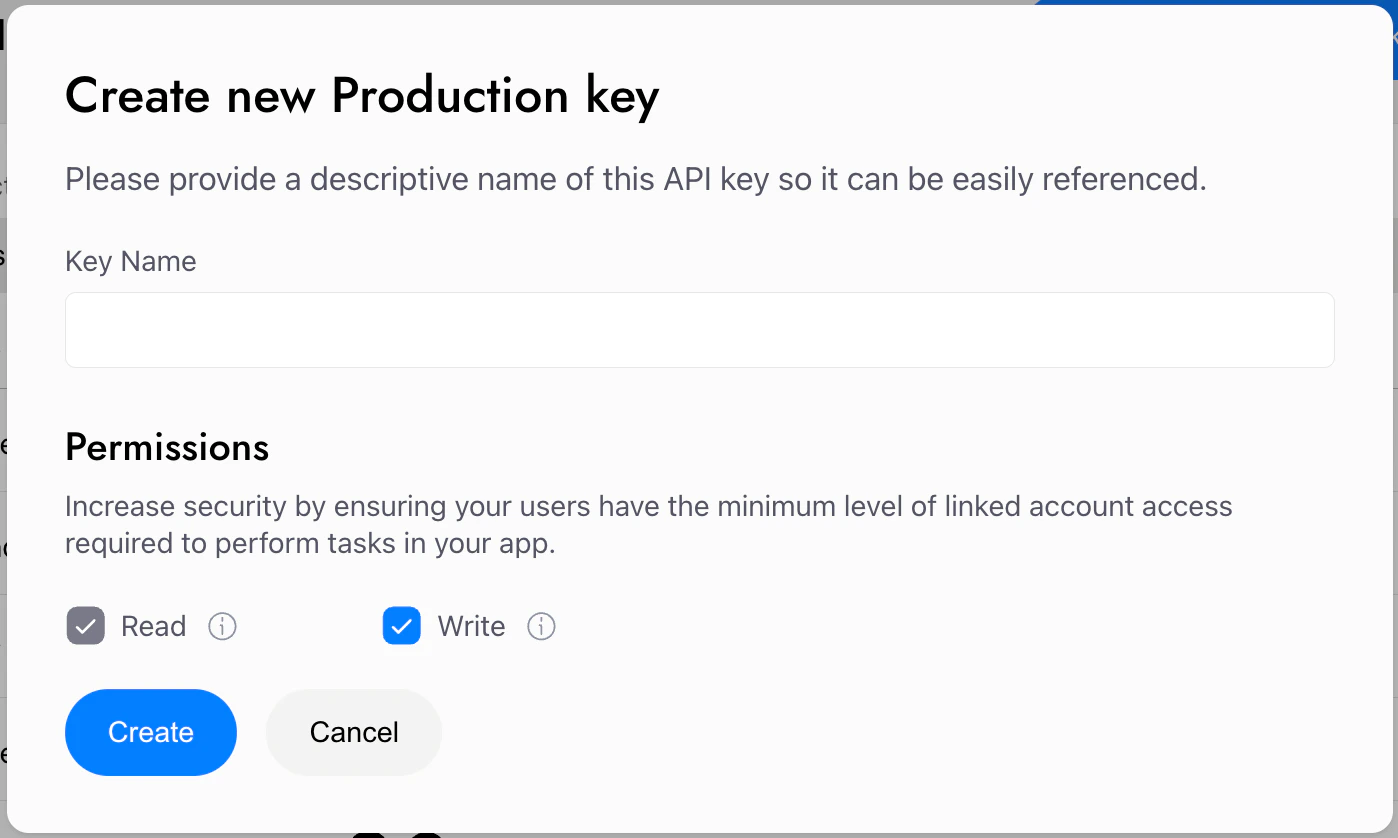
Generate a production API key
You can generate a production key in the Mesh developer dashboard in Account > API keys. You can grant each key Read-only permissions, or Read & Write (most common, and required for any use case involving transfers). If you haven’t done so already, you’ll need to complete the following first:- Secure your account with 2FA
- Complete Mesh’s business verification process
Point to Mesh’s production environment
Now that you’re set up for production, update your integration to point to Mesh’s production base URL: https://integration-api.meshconnect.com.Update your Content Security Policy
If your app enforces a Content Security Policy, two things need to be in place before launch:frame-src: Add*.meshconnect.comto allow the Mesh Link iframe to load.connect-src(Tron only): If you support Tron transfers, addhttps://tron.twnodes.com,https://trx.mytokenpocket.vip, andhttps://api.trongrid.io— the SDK calls these RPC endpoints directly from the browser.
Let’s test together
You should always thoroughly test the integration before going live, and we’d love to help. Ideally Mesh has a testing account in your app, is added to Testflight, etc. We’ve seen lots of Mesh implementations and have picked up plenty of tips and tricks along the way. Reach out to your Mesh representative to set up a testing session with the Mesh team — we want to make sure your launch goes smoothly.What’s next
You’re live! Once you’re up and running, explore the Extend guides to unlock additional capabilities, or visit Further resources for API references and integration-specific docs.AI coding reference (llms.txt)
AI coding reference (llms.txt)
AI coding reference — a compact summary of this page’s APIs, parameters, and patterns for use by AI coding assistants (following the llms.txt standard). Human readers can safely ignore this.llms.txt — Prepare for go-liveFour steps to launch in production: register production webhook URI → update to the latest SDK version → generate production API key → update base URL.Latest SDK version: Check you’re on the newest SDK before launch — see /resources/sdk-release-notes for current versions and release notes. GitHub releases pages (versions + release notes live here): Web (https://github.com/FrontFin/mesh-web-sdk/releases), iOS (https://github.com/FrontFin/mesh-ios-sdk/releases), Android (https://github.com/FrontFin/mesh-android-sdk/releases), React Native (https://github.com/FrontFin/mesh-react-native-sdk/releases), Flutter (https://github.com/FrontFin/mesh-flutter-sdk/releases). Stay updated automatically: GitHub Watch → Custom → Releases, or Dependabot.Production API key: Dashboard > Account > API keys > API keys > Production. Prerequisites: 2FA enabled, Mesh business verification complete.Production webhook URI: Dashboard > Account > API keys > Webhooks > Production. Sandbox webhooks do not carry over — register separately. Only one production URI at a time (can deactivate and replace).Production base URL:
https://integration-api.meshconnect.com(Sandbox: https://sandbox-integration-api.meshconnect.com)Content Security Policy: If your app enforces a CSP, add *.meshconnect.com to frame-src (Link iframe). For Tron transfers, also add https://tron.twnodes.com, https://trx.mytokenpocket.vip, https://api.trongrid.io to connect-src (browser-side RPC calls).Recommendation: Schedule a joint testing session with your Mesh representative before launch.